Archive

Author Archive

The story about the uniJTAG

December 19th, 2010 9 comments


After a couple of weeks designing, and deciding how the layout should, we ordered a couple of PCBs to test.
This friday we recieved the PCBs and soldered the first prototype. The soldering went fine, except a minor mistake with the packaging of the ordered Atmel EEProm. After bending some of the EEProm leads, everything was soldered and we were ready to test.

When we connected the uniJTAG the first time, it enumerated, and 4 devices was identified – two serial ports, and two USB Serial Converters.
With the FT_Prog tool from FTDI we changed the settings stored in the EEProm to 1 JTAG device (245 FIFO+MPSSE) and 1 Serial device (232 UART).

Then we started researching on the software part – looking at datasheets, codes and other examples done with the FT2232 chip.
FTDI had a couple of DLL’s which could be used to talk to the FT2232. After a couple of hours we finally had a BitBanger application, made in Visual Basic .NET, using the D2XX.dll from FTDI!
This worked pretty well, so now for the JTAG part.

JTAG seemed a bit more difficult than BitBanging, even though FTDI had the FTCJTAG.dll for the JTAG protocol part. So after a search on Google, we ended up trying OpenOCD.
It was pretty difficult to get OpenOCD running, as we are running a 64-bit version of Windows. First thing to notice is that OpenOCD is open source, but is going to be build before it can be used. On a Windows machine this can be pretty tough, as you have to use Cygwin. Though we found an already build version of OpenOCD including the open source FTDI driver – both 32-bit and 64-bit.
The open source driver is used instead of the original FTDI driver, so we had to uninstall the FTDI driver in Device Manager, and then install the open source driver instead.

Many hours later we finally had OpenOCD working with our own interface configuration, matching the uniJTAG. We connected the JTAG port to one of our LPC boards and made quick chain scan.
Success, it found our LPC1766 device – now for programming. A couple of commands later the LED connected to our LPC board started blinking – programming succeeded.

We have tried scanning an FPGA JTAG chain with success, though we haven’t tried programming FPGA’s with the uniJTAG yet.
Now there is only one big thing left; to check if it’s possible to use the original driver and the FTCJTAG.dll and our own software.

Categories: Tools Tags:

uniJTAG – The Universal JTAG Programmer

December 19th, 2010 15 comments

We have been looking for an inexpensive Universal JTAG Programmer for while, but we haven’t been able to find one! Instead we decided to make our own, inexpensive, FT2232 based JTAG programmer – the uniJTAG!

uniJTAG


The uniJTAG is a 5 by 5 cm board, with a USB port at one side, and JTAG and IO headers at another.

The JTAG port supports a wide range of voltages, as it is connected to a couple of voltage translators (74LVC2T45). This makes the uniJTAG even more universal, as you can use it together with any JTAG’able device, running at 1.2V to 5.5V.

The IO header can be used as 8 single controllable IO’s, or it can be used as a full standard UART port. With a jumper you can chose whether the IO’s should be at a 5V level, or a 3.3V level.

The board has also an onboard EEProm for storing the FT2232 configurations, so the uniJTAG is a plug and play solution, and it automatically enumerates as a JTAG and a Serial device.


Read the whole story about the uniJTAG development here: http://blog.tkjelectronics.dk/2010/12/the-story-about-the-unijtag/

Categories: Tools Tags:

LPC1766 & LPC2368 STAMP boards

December 19th, 2010 No comments

This friday I recieved two STAMP boards as a donation from MCUZone.

LPC STAMP Board


They are both STAMP boards, which means almost every pin is spread out for easy interfacing, but there is also a JTAG port and a USB port on the board.

The first one contains NXP’s LPC1766, which is a Cortex-M3 ARM processor with 256kB FLASH, USB Device/Host/OTG, Ethernet and more.
The other one contains NXP’s LPC2368, which is an ARM7 with 512kB FLASH and almost the same periphirals as the LPC1766, except the USB Host and OTG function.

In the video below you can see the two boards, and the LPC1766 in action, blinking an LED

Categories: ARM, Development boards, Reviews Tags:

Silent night, holy night

December 19th, 2010 No comments

Yes, we’ve been very silent the last couple of months, but now there is a light at the end of the tunnel. Christmas is coming and we have a lot to present in the new year.
But for those who can’t wait till new year, we will be posting a couple of projects and videos in the following days. For the curious, theese projects will be about:

  • uniJTAG – Our Universal JTAG Board
  • Renesas RDKRX62N Evaluation Board
  • LPC1766 and LPC2368 boards
  • USB LED Dot Matrix Revision 2
  • VGA Breakout Board

So keep updated on our blog, our Youtube account, and our Twitter account!

Categories: TKJ Electronics Tags:

FPGA STAMP

November 16th, 2010 No comments

TKJ Electronics - FPGA STAMP Board


We have been working a while with a FPGA STAMP board, to make it easier for you to start using and develop with FPGAs. Finally we have a working prototype, which you can see on the following images.

The FPGA STAMP Board includes

  • Spartan 3E FPGA – XC3S500E
  • 4Mbit Xilinx Flash PROM for configuration storage
  • Voltage regulators and protection, as 3.3V has to be added externally


TKJ Electronics - FPGA STAMP Board

TKJ Electronics - FPGA STAMP Board

TKJ Electronics - FPGA STAMP Board

The estimated price is around $80/each
If you would like to buy one of theese boards, please Contact Us

Categories: Development boards, FPGA Tags:

Getting started soldering SMD components

November 16th, 2010 1 comment

In this post I’m going to give some Soldering hints for soldering SMD components, and which tools you need to get started


Temperature-controlled soldering station

Velleman Soldering Station (VTSSC40N)


You need a good iron for soldering SMD components, especially when using small/thin tips. I’ve chosen to get a temperature-controlled soldering station because this will help keeping the tip-temperature constant, whatever tip size I’m using.


Bevel and Cone tip

Bevel and Cone Tip


When soldering I mostly use two different tips:

  • Cone tip: 0.5mm diameter
  • Bevel tip: 3mm diameter


Solder and Solder Wick

0.4mm Solder and Solder Wick


Of course you need some solder, and my recommendation is 0.4mm Leaded solder (64/36/2 Ag). I find it easier to use thin solder when soldering SMD components, because it’s easier to control how much to apply. I use Leaded solder as it melts at a lower temperature, and the gasses made from soldering with leaded solder are not that poisonous as soldering with LeadFree solder.


Grease Flux and Flux Pen

Grease flux and Flux pen


When soldering regular SMD components like resistors, capacitors and IC’s with a few pins, I use a Flux pen to flux the pads before soldering. When soldering fine pitch SMD IC’s like QFP or TSOP I use the Grease Flux, which I add after I’ve placed the component.

The Grease Flux is a gel substance, while the Flux Pen contains liquid flux. You could, of course, also use liquid Flux instead of the Grease Flux. That’s something you have to decide for yourself!


Angled Tweezers, Magnifying Lamp, 15x Loupe and Tip Cleaner

Angled Tweezers, Magnifying Lamp, 15x Lupe...


Theese 3 tools are VERY necessary when doing SMD operations.

  • The Tweezers are used to grab and hold the components in place while soldering
  • The Magnifying Lamp is used when soldering
  • The 15x Loupe is used to check the connections after soldering
  • The Tip Cleaner is a metal-grid ball which “drags” the solder off the iron while also fluxing it


Soldering two leaded SMD components like resistors and capacitors

Two leaded components are mostly the easiest to solder, and I’ve done 0603 resistors with my magnifying lamp only. You have to prepare everything, install the chisel tip, turn you iron on, and set it to 330 degrees (626 fahrenheit) when using leaded solder as I do.

Then use your Flux Pen to Flux the pads where you are going to solder the components. Take your iron and tin the tip, clean it, and place a small drop of solder on the iron again. Place this small drop on one of the pads, but touching the pads gently and holding the iron on the pad for a couple of seconds.

Next grab the component with the tweezers, while you are still holding the iron with your other hand. Heat up the pad where you placed a solder drop before, and push the component against the soldering iron while pressing it down to the PCB, too. Remove the soldering iron while still holding the component in place with the tweezers. After a couple of seconds, remove the tweezers, and one side should be soldered.

Finally heat up the other side of the component and the pad beneath it, and if required add a small amount of solder.


A “Solder Ball” was created – what do I do?

If a “Solder Ball” appears while soldering SMD components, you either haven’t heated the pad enough or you have added too much solder. You have to make sure that a connection is made with the pad, as not enough heat will make the solder just “lie” on top of the pad.

So to fix this, Flux the pad with your Flux Pen, and then heat up the component and the pad. If the “Solder Ball” gets smaller after a couple of seconds, you haven’t added enough heat to the pad the first time you soldered the component. The connection to the pad has now been made, and you can go on.

If the “Solder Ball” doesn’t get smaller, you have probably added too much solder. It’s recommended to remove some of the excess solder by using the “Solder Wick”.


Notice for LEDs and other Diodes

SMD Polarity (seen from the bottom)


Most of the times LEDs and other Diodes have two leads, like all the other passive components. But as you probably know LEDs and Diodes are polarized, so they have to be mounted correctly. That is why we have to take a look at the bottom of the SMD LED or Diode to see where the anode and cathode are. The image above shows the two markings that will indicate the polarity.

The thing I noticed was that on a PCB where you have a line to mark the cathode (negative), you have a line to mark the anode (positive) on the SMD component itself!


Soldering SMD ICs with a few pins

When you are going to solder a SMD IC with a few pins, like a TSOP or SOT23, I recommend using the same method as descriped above. You start by fixing a corner pin, and then you flux the rest of the pins with your Flux Pen, and finally you solder them one by one.

However, you could also use the same method as for soldering Fine Pitch ICs (described beneath), to solder theese. I just recommend using the method described above when you are not soldering 0.5mm parts or parts with >16 pins


Soldering Fine Pitch SMD ICs, and ICs with a lot of leads

Fine Pitch ICs and ICs with a lot of leads are pretty easy to solder, if you are using the right tools. When I solder Fine Pitch ICs (0.5mm spacing), I use the Bevel Tip and the Grease Flux.

To start with you have to prepare your soldering iron by changing the tip to a Bevel Tip. Then you turn it on and set it to 330 degrees (626 fahrenheit). When the iron is heated up, tin the tip, and clean it.

Now you have to place and align the IC. I use a Vacuum Tool to pick up the IC, so I don’t bend any leads. Then I carefully use the tweezers to align the part on the pads. This can be a tough task and you might need the 15x Loupe to check if the alignment is correct. When the IC is aligned properly, fix it with tape or solder a couple pads in the corners. I find it easier to hold it in place by using tape.

Next you have to add the Grease Flux to a row of leads. It’s better to add too much than to little. You could, of course, also use Liquid Flux instead of the Grease Flux, and maybe that will work better for you. When you have fluxed a row of leads, grab your iron and add a lot of solder, so it makes a kind of drop/ball on the beveled tip.

Now you have to move the flat side of the beveled tip across all the fluxed leads. By doing this slowly enough, you will be able to drag the solder drop across all the leads, but still get every lead soldered.
When you come to the last couple of leads in the row, slow down even more, and lift the iron slowly away from the leads. NOT by lifting upwards, but by lifting across – as if the row had more leads. This keeps the solder drop on the iron, instead of the last couple of leads.

If it happens that the solder drop stays on the last couple of leads, or if any other Bridges occour, then just take you Solder Wick and remove the solder. You do this by placing the Solder Wick on top of the Bridge, and then heat up the Solder Wick and the Brigde on the same, by touching the Solder Wick with your iron. After a couple of seconds the solder Bridge will be “sucked up” into the Solder Wick.

This soldering method is called Drag Soldering, and I find it very easy to do, after I tried it a couple of times. With this method you will be able to solder 144-pin TQFPs in no time. For me it takes about 30 minutes to solder a 100-pin TQFP (Xilinx VQFP). Practice, and you will find it easy and fast, too.

Categories: Tools Tags:

TKJ Electronics is going to be online

October 27th, 2010 No comments

Finally TKJ Electronics has got our own domain, and on 1. November we will have our own homepage too.

www.TKJElectronics.dk


Our homepage will contain information about our products, documentation, downloads, online shop and much more. Of course all the pre-release news and other exiting news will be published at the blog!

Check www.TKJElectronics.dk the 1st November for more information.

Categories: TKJ Electronics Tags:

New guy at TKJ Electronics

October 3rd, 2010 No comments

Today I’ve teamed up with a student from Belgium, who is going to be a part of TKJ Electronics.
He will help doing the development of new boards, especially the PCB designs as he is very experienced at this.

His name is Robin Theunis, he is 18 years old, a student and lives in Beringen – Belgium.
Currently he studies at a university college called KHK Kempen in Geel.

He have done many projects in the recent years, some for hobby, some for school, and one for a company. He quotes: “I’m in the world of embedded designs”

You can find some of his projects here:

You can see more of his projects on his blog: http://www.on8rth.be
Instead of using Eagle he uses Altium – which in my opinion is a much better tool than Eagle, but unfortunately Altium doesn’t provide any Freeware versions!

So welcome to you Robin!

Categories: TKJ Electronics Tags:

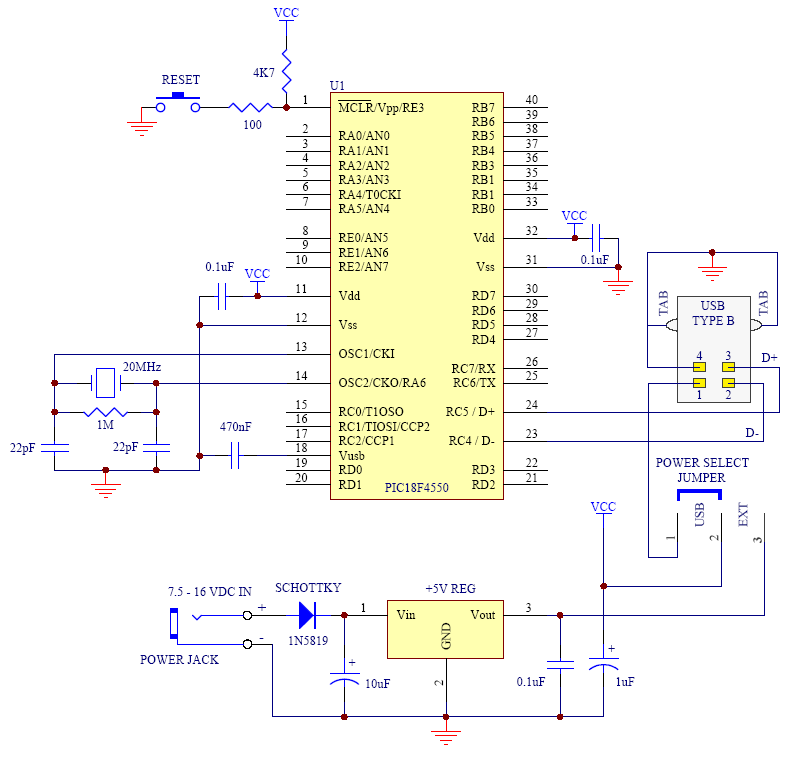
Minimal PIC18 USB connection schematic

October 2nd, 2010 No comments

While cleaning up my computer files I stumbled over this schematic, which I used in the early stage of the USB LED Matrix development, and I thought it might be usefull to others.

Minimal PIC18 USB Schematic

Categories: PIC Tags:

First projects with FPGA

September 14th, 2010 51 comments

When I first recieved the board, I had already found out how to use Xilinx ISE to make schematic projects. So I made a 8-bit counter using flip-flops, AND and OR gates.
You can see the schematic here beneath:

Xilinx ISE - 8-bit Flip-Flop Counter Schematic


After a long chat with guy from HIH named Thomas (3rd semester), I got a pretty good understanding of the VHDL language and how to write to the FPGA.
So together with him I made my first project – a seven segment display decoder. It takes two 4-bit binary inputs and turns it into two HEX decimals on the seven segment display.
Afterwards I continued the project, and made a counter using the same seven segment decoder “module”.
Note: A module is like any other module in regular programming language; it works by importing it, and then using it’s “functions” – though you don’t have functions with FPGA’s, but instead you have entities with processes!

Finally I made a fully working 24-hour clock with hours, minutes and seconds. You are able to set the clock by using the switches and buttons.
I’ve uploaded a video to youtube about these projects so you can see what I’ve made.
Beneath the video I’ve also uploaded the VHDL code for the 3 projects, and the seven segment module, and the UCF (pin definition) files for use with the Basys2 board, for the different projects.


I’ve uploaded a zip file containing the VHDL code for the 3 Seven segment projects and UCF files for use with the Basys2 board.
You can grab the zip file here!

A new “easier to use” Seven Segment module can now be downloaded here: SevenSegment_Controller.zip

Categories: FPGA Tags: